







































Set up your game
TF2's defaults aren't made for competitive play. Twenty minutes with this page gets you the settings nearly every comp player uses, a smoother game and everything your league expects you to have.
Settings to change first
All of these are in the game's own menus. Options is the main settings window; Advanced is the "Advanced..." button on its Multiplayer tab.
| Setting | Where | Why |
|---|---|---|
| Developer console | Options -> Keyboard -> Advanced | Lets you type commands. Bind a key to it too. |
| Fast weapon switch | Options -> Keyboard -> Advanced | Switches weapons on one key press, without the menu. |
| Raw input, no mouse acceleration or filter | Options -> Mouse | Your aim moves exactly as far as your mouse does. |
| Field of view 90 | Options -> Video -> Advanced | The widest view the game allows. |
| Auto-reload | Advanced -> Combat | Reloads for you whenever you aren't firing. |
| Hit sounds and last-hit sounds | Advanced -> Combat | Tells you instantly when you hit or kill someone. |
| Damage numbers, accumulated | Advanced -> Combat | Shows how much damage each hit did, added up into one number. |
| Medigun keeps healing | Advanced -> Class specific | Medic: no need to hold the fire button. |
| Injured teammates call out | Advanced -> Class specific | Medic: low-health teammates call for you automatically. |
| Ping in the scoreboard | Advanced -> HUD | Shows each player's ping as a number. |
| Respawn after loadout change | Advanced -> Miscellaneous | Changing loadout in spawn respawns you straight away. |
Many players clear the mouse-wheel weapon switch (Options -> Keyboard -> Combat) and use the number keys instead, so a stray scroll never swaps their weapon mid-fight.
Launch options
- 1In your Steam library, right-click Team Fortress 2 and choose Properties.
- 2On the General tab, paste this into Launch options:
-novid -nojoy -nosteamcontroller -nohltv -particles 1 -precachefontchars -console- -novid
- Skips the intro video.
- -nojoy, -nosteamcontroller, -nohltv
- Don't load controller and SourceTV support you never use.
- -particles 1, -precachefontchars
- Small performance and loading improvements.
- -console
- Opens the console at the main menu, where your console key doesn't work yet.
Network settings
TF2's default network settings add around 100 ms of delay to everything you see. These commands bring it down to the minimum. Paste them into your console, or better, into your autoexec.cfg so they apply every time:
cl_cmdrate 66
cl_updaterate 66
rate 200000
cl_interp 0
cl_interp_ratio 1
Your autoexec lives in tf/cfg/autoexec.cfg inside the game folder. If you use mastercomfig (below), put it in tf/cfg/overrides/ instead - mastercomfig sets sensible network values for you anyway.
On a bad connection with packet loss, use cl_interp_ratio 2. If your frame rate regularly drops below 66, lower cl_cmdrate and cl_updaterate to match it. And if your ping is always high, hitscan classes will feel much better than projectile ones.
Performance configs
A performance config is a file of hundreds of console settings the menus don't expose, tuned for a high and steady frame rate. A steady frame rate matters far more in comp than pretty graphics, and even an old laptop can run TF2 well with one.
Low-poly models and flat-texture mods are cosmetic - they don't raise your frame rate. Closing programs running in the background does.
A custom HUD
The HUD is everything drawn on top of the game: health, ammo, the killfeed, the scoreboard. Custom HUDs show the same information more clearly - exact über percentages, damage dealt, round timers - and give no other advantage. The default HUD is fine for your first scrims, but most players switch soon.
- 1Pick one on tf2huds.dev and download it.
- 2Extract it into tf/custom/ in your game folder.
- 3Check the folder: info.vdf and the resource and scripts folders must sit directly inside the HUD's folder, not one level deeper.
- 4Restart the game.
Record your demos
A demo is a replay file of a game. A POV demo is recorded on your own PC from your point of view; an STV demo is recorded by the server and shows everyone. Record every scrim and official: reviewing them is how you improve, and some leagues require them - RGL asks for a POV demo of every match, and ozfortress servers check that you're recording.
- Record automatically with PeachREC or mastercomfig's demo add-on, so you never forget.
- Or by hand: record name in the console when the game starts, stop at the end.
- Watch a demo with demoui (or Shift+F2) in the console. Servers booked on serveme.tf upload their STV demos to demos.tf after the game.
Voice comms
You need a microphone - comp is played in voice. Most teams use Discord; PUGs and some teams use Mumble, which has lower latency and better quality.
- 1Download Mumble from mumble.info.
- 2Run the audio wizard and set up push-to-talk.
- 3Add the server you've been given. The default port is 64738, so usually the address is all you need.
- Keep it short. "Soldier hit, 80" beats a full sentence.
- Call what matters: damage on enemies, über advantage, enemies dropping down to your side, and where people are using the map's callout names.
- Let the caller call. In a fight, one voice decides when to push or fall back.
New to the lingo?
Rollouts, callouts, focus, sacwaves, crit heals and the rest of the vocabulary are all explained in the jargon buster.
Open the jargon busterReady to play?
Jump into a pickup game to try what you've read, then find a team for your first season.
More newcomer guides
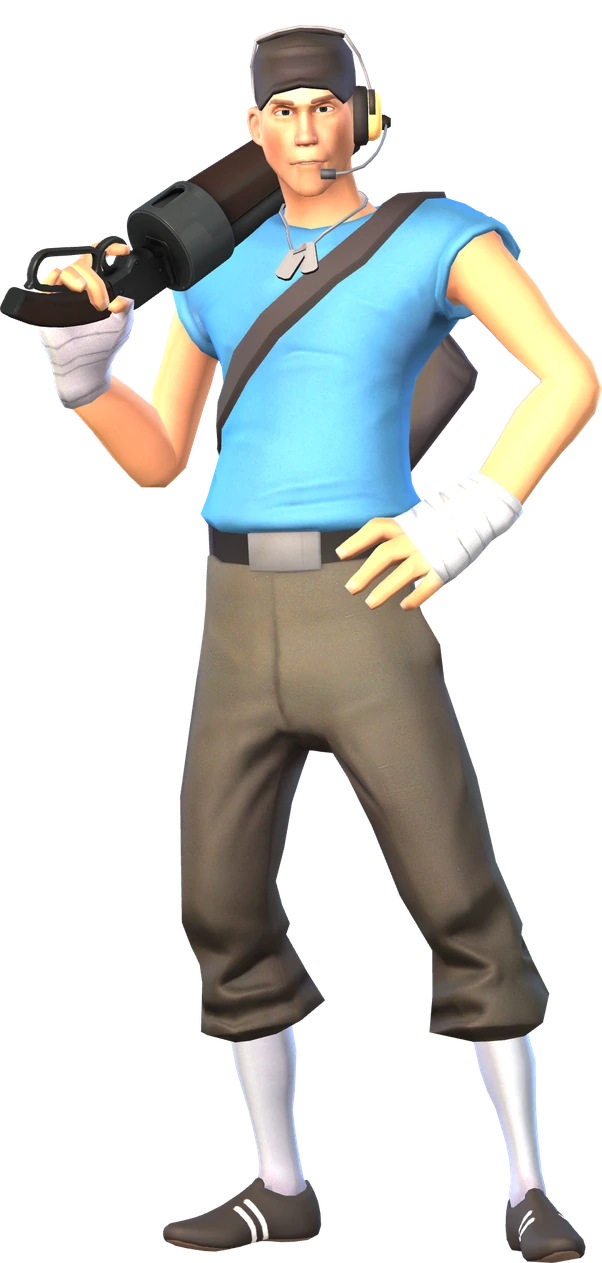
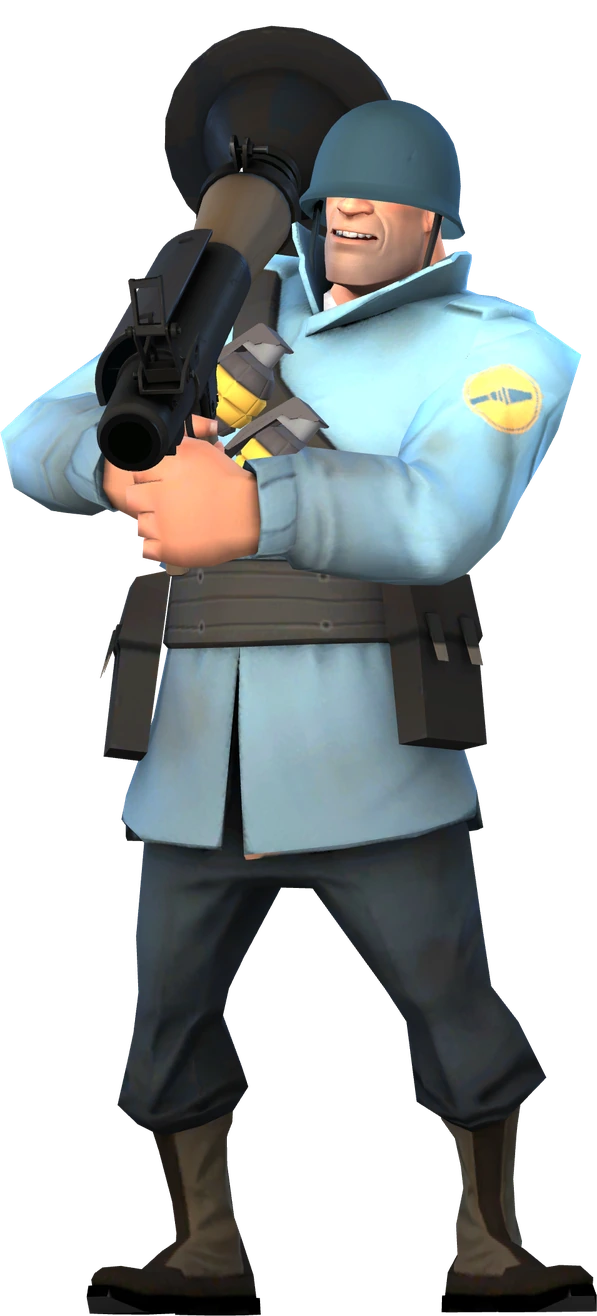
The combo and the flank, every role's job, rollouts and loadouts.
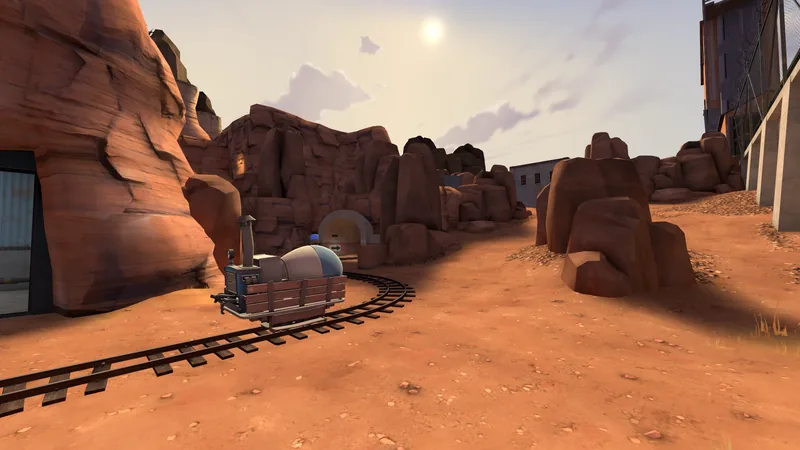
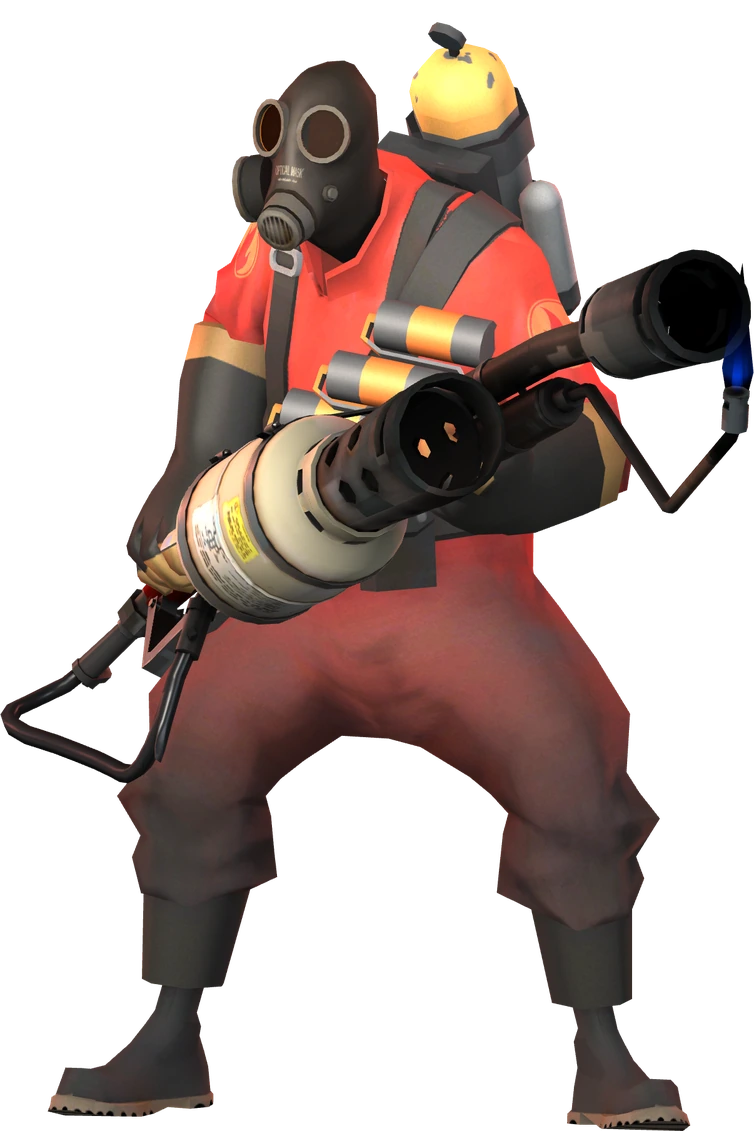
What each of the nine classes does, and how a Highlander team fits together.
How a season works, finding a team, trials, scrims and etiquette.
Free servers (serveme.tf, TF2-QuickServer, Matcha), connect strings, RCON and every league's configs.
When to take a fight, the advantages that matter and playing the clock.